Punch Item Lifecycle
How a punch item moves from Open to Closed — the status workflow, transition rules, and reinspection gates.
Punch items follow a defined lifecycle with strict rules about who can transition status and when items can close. These rules ensure that all defects are properly resolved and verified.
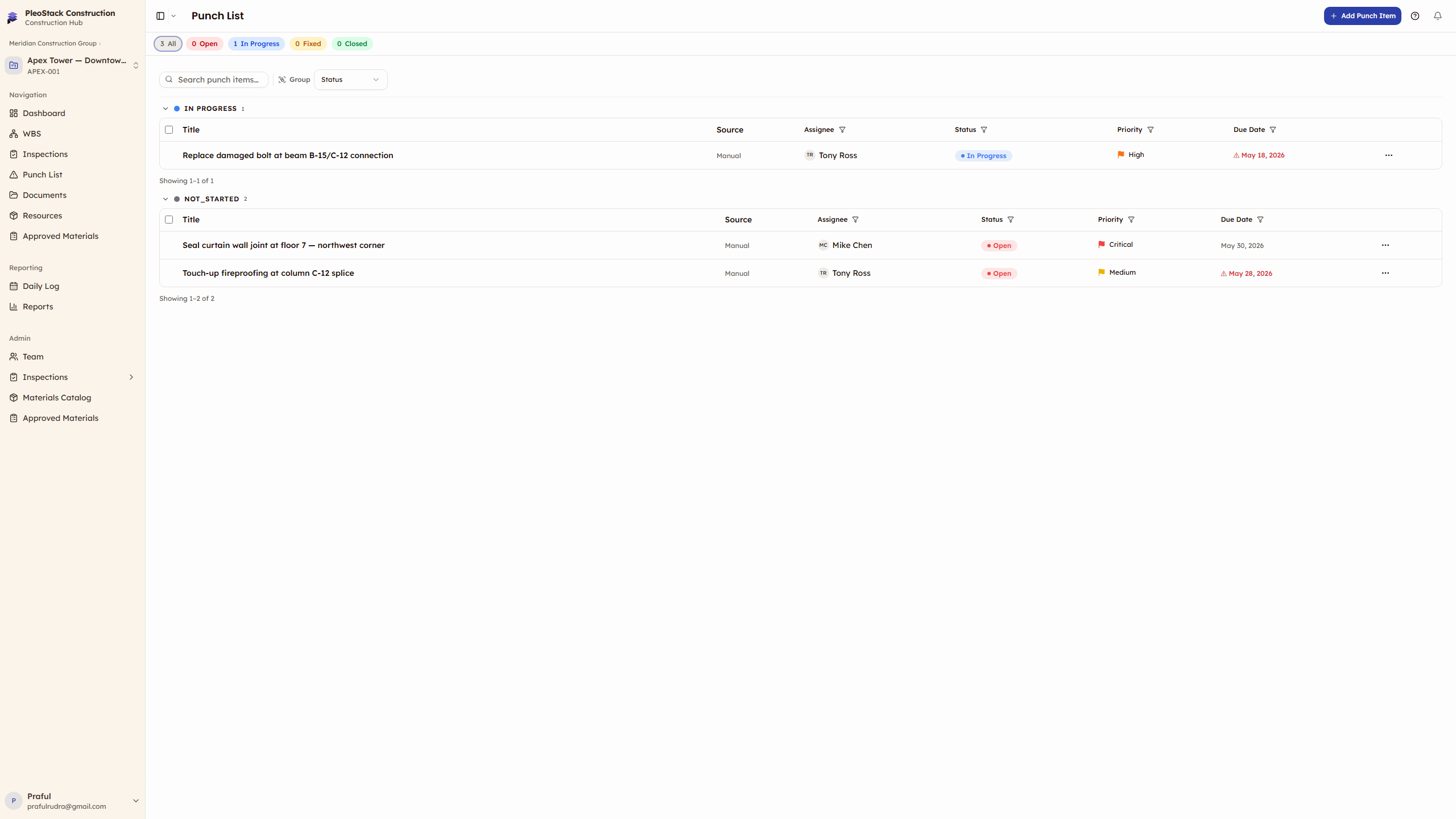
Status Flow
Status Transitions
| From | To | Who Can Do It | How |
|---|---|---|---|
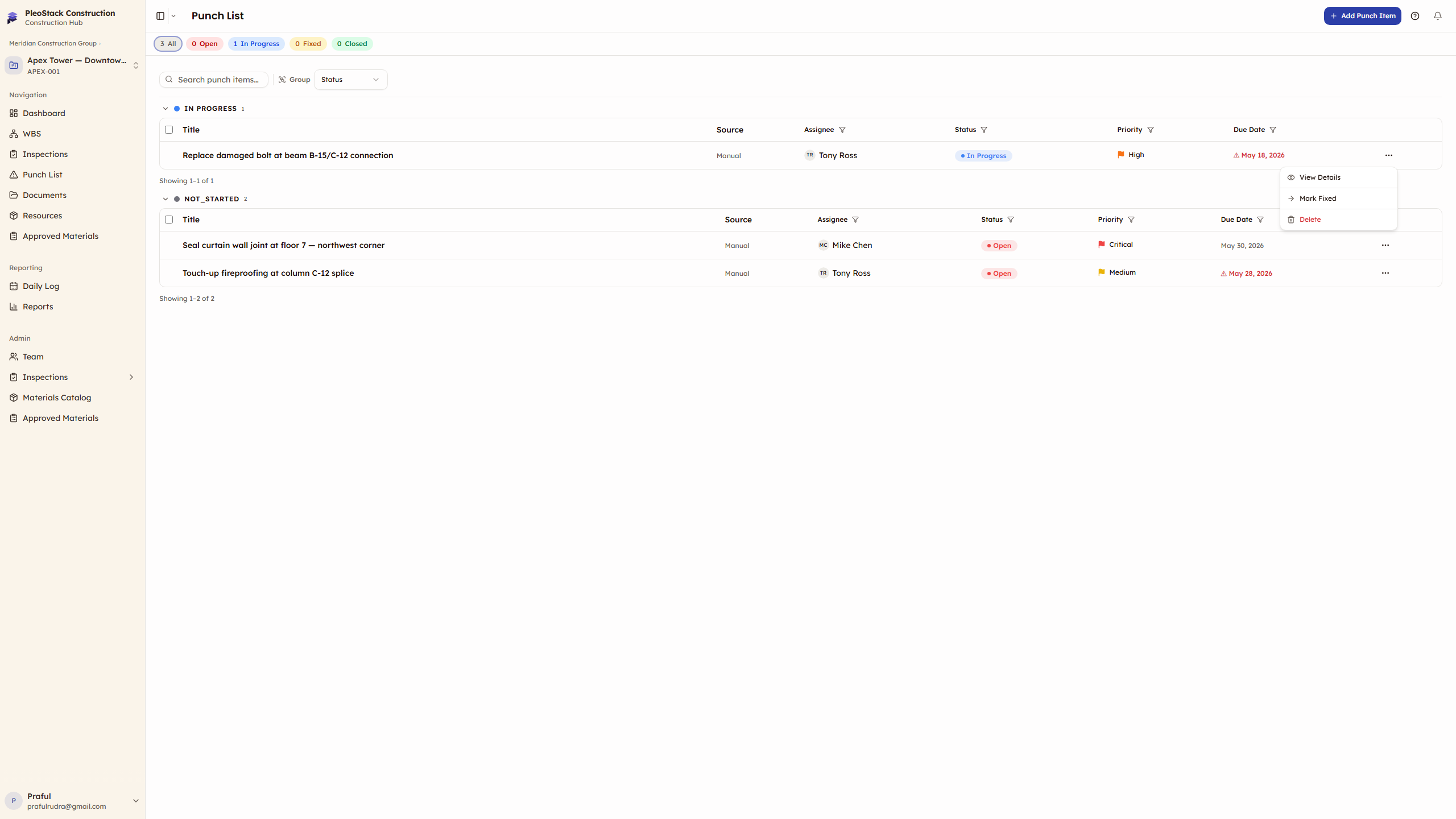
| Open | In Progress | Assignee, creator, or project owner | Row menu → Start Fix |
| In Progress | Fixed | Assignee, creator, or project owner | Row menu → Mark Fixed |
| Fixed | Closed | System (auto-close on reinspection) | Automatic when prerequisites met |
Key Rules
- The Performer can only FIX punch items — they cannot close them directly
- Closure happens automatically when the Performer advances during reinspection AND all sibling punches are Fixed
- ALL sibling punch items (from the same inspection) must be Fixed before any single punch can close
Closure Rules in Detail
Rule 1: Performer Cannot Close
The Performer (the inspector who created the verdicts that generated the punch) can mark items as Fixed but cannot close them. Closure requires verification through the reinspection workflow.
Rule 2: All Siblings Must Be Fixed
Punch items from the same inspection are treated as a group ("siblings"). No individual punch can close until ALL siblings are Fixed or already Closed. This prevents partial resolution.
Example:
- Inspection "Pre-Pour Check" generates 3 punch items: P-001, P-002, P-003
- P-001 is Fixed, P-002 is Fixed, P-003 is still In Progress
- None can close yet — P-003 must also reach Fixed status
Rule 3: Auto-Close on Reinspection
When the Performer has:
- Fixed all linked punch items
- Re-inspected and recorded new verdicts on the previously failed items
- Submitted for review
The system automatically transitions all Fixed punch items to Closed when the Performer advances the reinspection.
How the Interface Guides You
The app makes these prerequisites visible rather than silently blocking you.
Punch Item Detail Page
When a punch item is Fixed and linked to a source inspection, a "Before you can close this punch item" checklist block appears above the form content. It shows two ordered steps:
Step 1 — Fix all related punch items Shows live progress (e.g., "2 of 3 fixed"). If siblings are still open or in progress, each one is listed as a clickable row — tap any to navigate directly to that punch item without losing your place.
Step 2 — Complete the reinspection This step is dimmed until Step 1 is fully complete. Once all siblings are Fixed, an inline Perform Reinspection button appears inside the step so you can start the reinspection immediately.
When both steps are done, the checklist header changes to "Ready to close" and the footer's Close Punch Item button unlocks.
Footer button reflects current state
While prerequisites remain unmet, the Close Punch Item footer button shows a lock icon and is disabled — hover to see a tooltip with the specific reason. It never silently disappears; it stays visible so you always know what action comes next.
Punch List Table (row actions)
When "Close Punch Item" is blocked in the row actions menu, it displays a lock icon instead of being grayed out, and hovering shows a tooltip. Clicking the item navigates you to the detail page where you can see and act on the prerequisites — it's never a dead-end no-op.
Reinspection Gate
If the "Require Punch Resolution Before Reinspection" policy is enabled:
| Condition | Can Reinspect? |
|---|---|
| All linked punches Fixed or Closed | ✅ Yes |
| Any linked punch is Open or In Progress | ❌ No — blocked |
The Performer sees a message explaining which punch items need resolution before they can record reinspection verdicts.
Typical Lifecycle Example
Defect Identified
During inspection, the Performer marks "Rebar spacing" as Fail and toggles Auto-Create Punch Item ON. A punch item is created: "Rebar spacing — 180mm measured, 150mm required" → Status: Open.
Work Begins
The site team receives the punch item. The assignee clicks Start Fix → Status: In Progress. Rework begins — rebar is repositioned to the correct spacing.
Fix Complete
After the rework, the assignee clicks Mark Fixed → Status: Fixed. All sibling punches from this inspection must also reach Fixed status.
Reinspection Verifies
The Performer re-inspects the items (reinspection cycle). When they submit for review with passing verdicts, the Fixed punch items auto-transition to Closed.
Priority Impact
Priority doesn't affect the lifecycle mechanics but provides urgency signals:
| Priority | Typical Response |
|---|---|
| Critical | Immediate action — safety issues, stop-work items |
| High | Same-day response — blocking other trades or work |
| Medium | Standard rework timeline — 1-3 days |
| Low | Can be bundled with other work — cosmetic fixes |
Overdue items (past due date) show visual indicators in the table.
Next Steps
- Punch List Overview — Table layout, filtering, and management
- Reinspection — How the reinspection cycle works with punch resolution