Documents
A shared file library for every project — one folder tree, drag-and-drop upload, and instant image preview. Drawings, permits and site paperwork in one place the whole team navigates the same way.
A shared filing cabinet for the project
One folder tree, one library, and the same view for everyone on the project.
Folders that match how your team files
Create nested folders at any depth to organize project files however the team works — by area, by trade, by submittal package. Add a subfolder, rename or delete from the folder's options menu in the tree; the structure is shared, so everyone navigates the same tree.
- Unlimited nesting depth — as many levels as the project needs
- New subfolder, rename and delete from the folder's options menu
- One shared structure for the whole team
- Deleting a folder never deletes its files — they move to the project root
One library per project, filled on purpose
The library holds the documents someone deliberately filed into it — drawings, permits, method statements, site paperwork. Photos and evidence attached to an inspection or an issue stay on that record, where the context is, rather than being tipped into the file tree.
- One library per project, not a shared drive nobody owns
- Evidence attached to an inspection or issue stays on that record
- Everyone on the project sees the same library and the same folders
- Removing a file removes it for everyone on the project, permanently
Drop anything, preview instantly
Drop files anywhere on the file list to upload — multiple at once, any type: PDFs, images, videos, documents, CAD drawings. Images open in a preview dialog; everything else opens in a new tab, with a type icon so the list reads at a glance.
- Drag-and-drop onto the file list, multi-file
- Any file type, up to 25 MB per file
- Click an image to open it in a preview dialog
- Type icons in the list — red PDF, purple video, blue image
More in the Documents module
The supporting register — everything else the module carries, on the record.
- Two-panel layout
- Folder tree on the left, file list on the right on desktop — the filing cabinet metaphor that just works.
- Safe folder deletion
- Files in a deleted folder move to the project root — they're never destroyed with the folder.
- Permanent file removal
- Removing a file removes it for everyone on the project and it cannot be brought back — the confirmation says exactly that.
Every view of project files
Folder tree and preview — the working views.
The two-panel view — nested folder tree beside the file list.
How it works
Three steps from scattered files to one organized project library.
Upload your files
Drag and drop files onto the file list, or use the Upload button. Multiple files at once, any type, up to 25 MB each.
Why switch from shared drives?
Most teams start with Google Drive, Dropbox, or a network folder. Here's what breaks and what changes.
The old way
- Files scattered across email attachments, chat messages, and shared drives — nobody knows where the latest copy lives.
- Folder structure gets messy fast — every person organizes differently, nothing is consistent.
- New people on the project get sent a link, or don't, and end up working from an old copy.
- Nothing ties the drive to the project. When the project ends, the files stay wherever they landed.
With Construction Hub
- One library per project — everything the team files, in one place.
- One shared folder tree the whole team navigates, nested as deep as the project needs.
- Everyone on the project sees the same library the moment they're added — nothing to re-share.
- The library belongs to the project, alongside the work it documents.
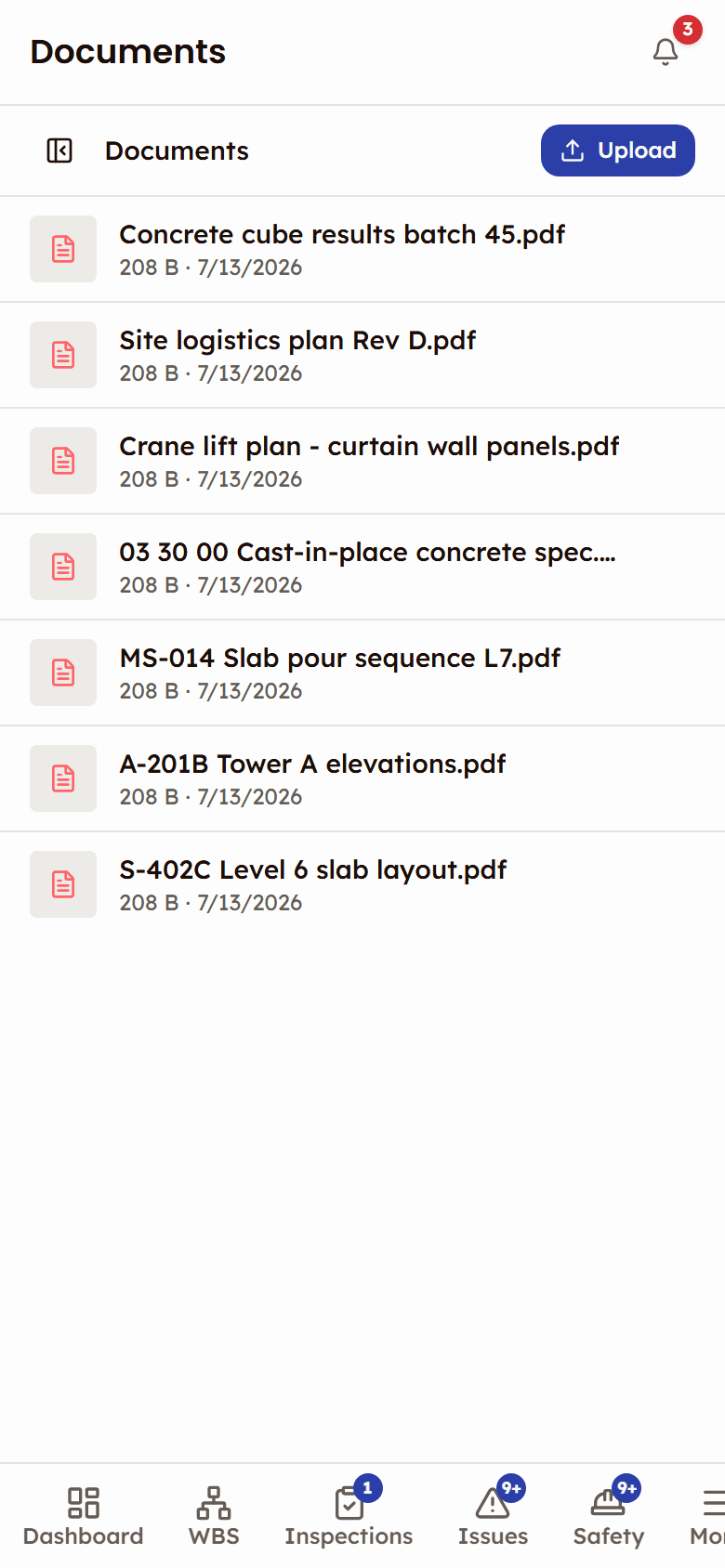
On site, in a phone browser
The library works in a phone browser on site — tap through the folders, upload from the device, and open a photo in a preview.
- Tap through subfolders in the list; the folder path breadcrumb shows where you are
- Upload from the phone's file picker, or drag files in on a laptop
- Tap an image to open it in a preview
- Renaming and deleting folders happens in the desktop folder tree
Frequently asked questions
Works with
Work Breakdown Structure
Hierarchical work planning with a nine-status construction workflow, read through seven lenses.
Inspections
Quality inspections with customizable templates and multi-party review workflows.
Issues
Issue tracking from discovery to closure — quality, safety, and punch list categories in one register.

See Documents in action
See how a project keeps its drawings, permits and site paperwork in one shared library.
One shared file library for every project