Punch List — Overview
Track defects and issues found during inspections with status, priority, and assignee management.
The Punch List tracks defects and issues that need resolution — whether auto-created from failed inspection items or added manually. Each punch item moves through a defined lifecycle from identification to closure.
What You See
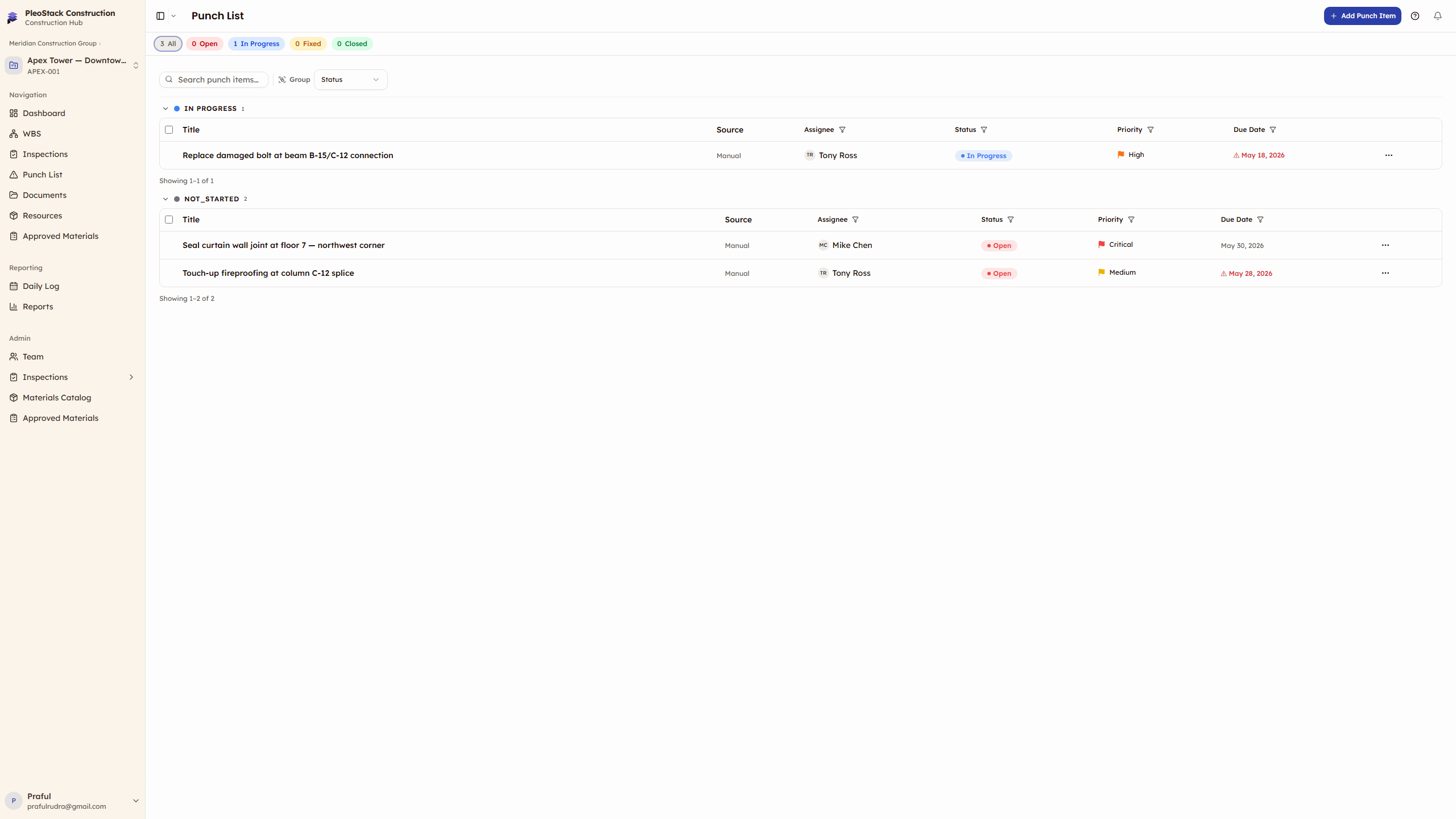
The Punch List table shows all defect items for your project:
| Column | What It Shows |
|---|---|
| Title | What needs to be fixed (auto-filled from failed checklist items) |
| Source | The inspection and checklist item that created this punch |
| Assignee | Team member responsible for fixing the issue |
| Status | Open, In Progress, Fixed, or Closed |
| Priority | Critical, High, Medium, or Low (with color indicators) |
| Due Date | When the fix is expected (overdue items flagged) |
How Punch Items Are Created
Automatic (recommended):
- During inspection, when marking an item as Fail → toggle "Auto-Create Punch Item" ON
- The checklist item label becomes the punch item title
- Linked to the source inspection and specific checklist item
- Inherits assignee from the inspection if set
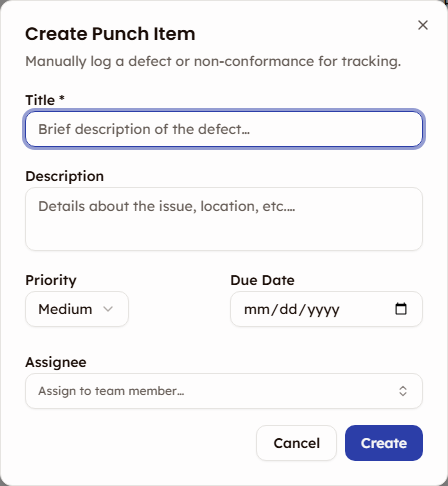
Manual:
- Click New Punch Item in the toolbar
- Fill in title, description, priority, assignee, and due date
- Optionally link to a source inspection
Auto-creation is preferred because it maintains the link between the inspection item and the punch item. This link enables automatic closure during reinspection.
Statuses
| Status | Color | Meaning |
|---|---|---|
| Open | Red | Identified — needs attention |
| In Progress | Blue | Assignee is working on the fix |
| Fixed | Amber | Fix is complete, ready for verification |
| Closed | Green | Verified and accepted |
Priorities
| Priority | Color | Usage |
|---|---|---|
| Critical | Red | Safety issues, structural defects, blocking other work |
| High | Orange | Significant quality issues requiring prompt attention |
| Medium | Yellow | Standard defects, typical rework items |
| Low | Gray | Minor cosmetic issues, non-urgent |
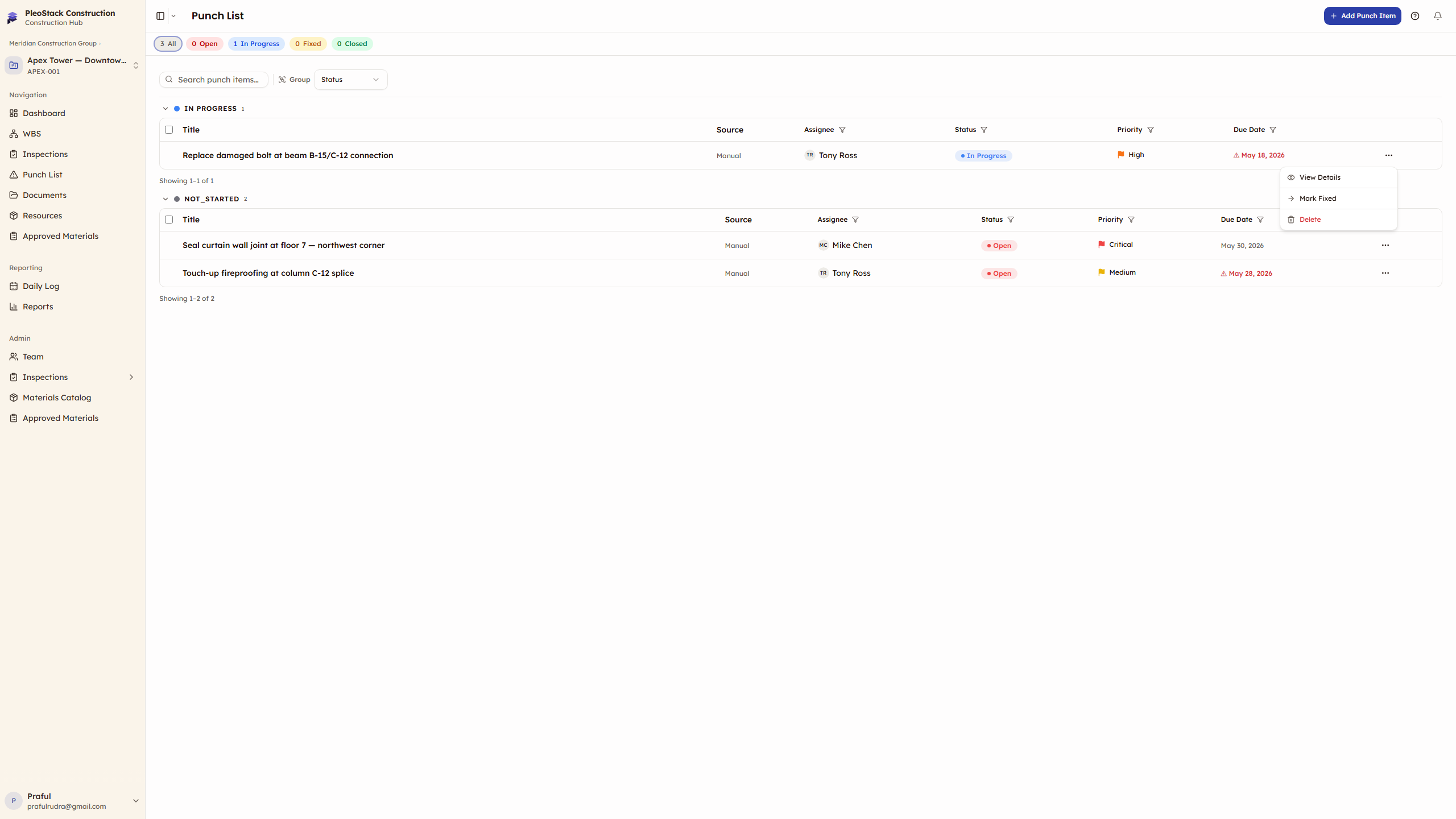
Row Actions
Click the actions menu (⋮) on any punch item row:
| Action | Effect |
|---|---|
| Start Fix | Transitions from Open → In Progress |
| Mark Fixed | Transitions to Fixed (ready for verification) |
| Close Punch Item | Available once both closing prerequisites are met (all siblings Fixed + reinspection submitted). When blocked, shows a 🔒 lock icon with a tooltip — clicking navigates to the detail page where the prerequisites checklist shows exactly what remains. |
| Edit | Update title, description, priority, assignee, or due date |
| Delete | Permanently remove the punch item |
Filtering & Grouping
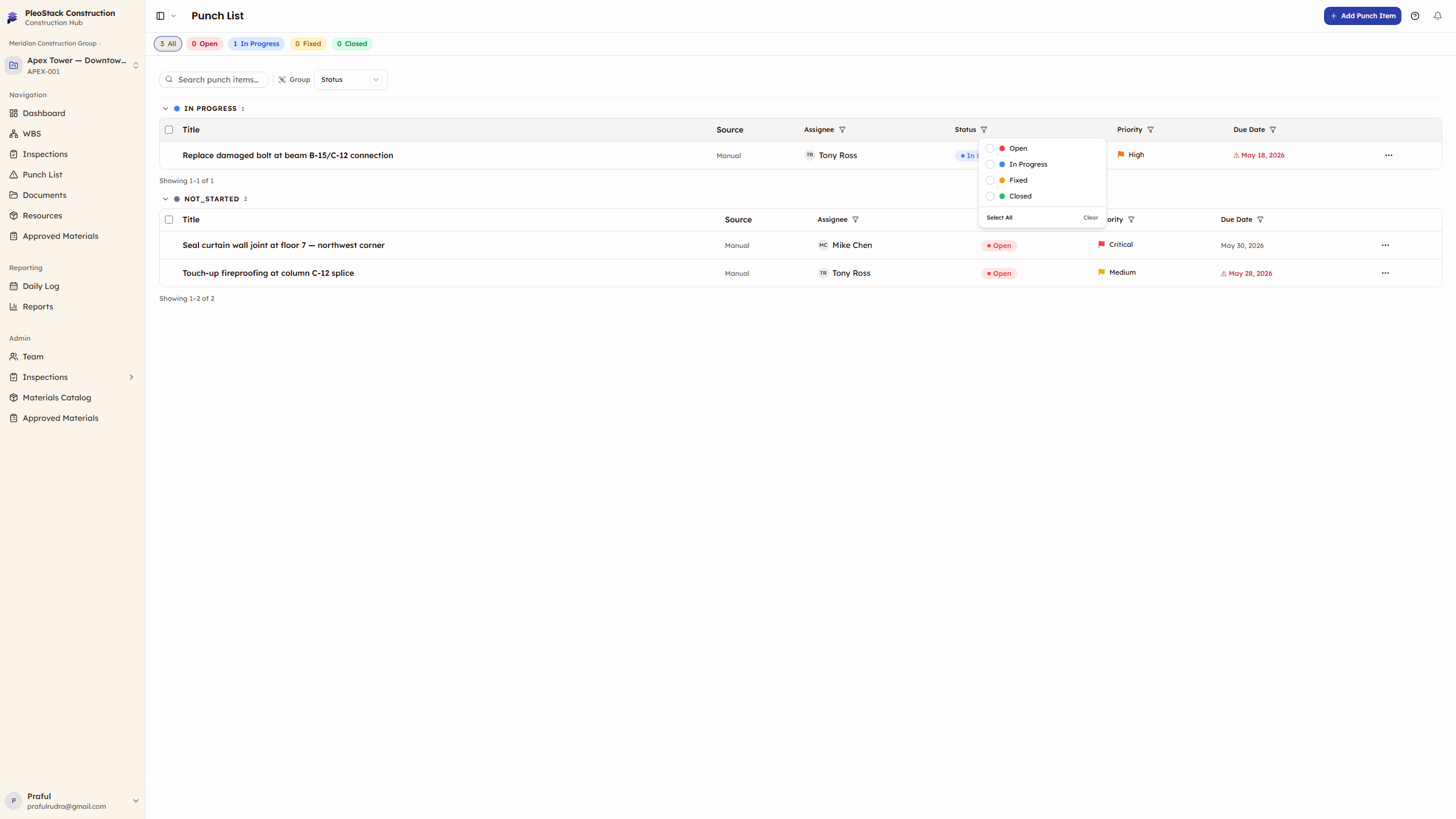
| Control | Options |
|---|---|
| Status filter | Multi-select from Open, In Progress, Fixed, Closed |
| Priority filter | Multi-select from Critical, High, Medium, Low |
| Search | Filter by punch item title |
| Group by Status | Organized under status headers |
| Group by Priority | Organized by urgency level |
Bulk Actions
- Bulk Assign — select multiple items → reassign to a different team member
- Delete Selected — select multiple items → bulk removal with confirmation
Next Steps
- Punch Item Lifecycle — The status workflow and rules for closure
- Reinspection — How punch resolution gates reinspection