Entry 008
Solid Ground: The September Construction Hub Release
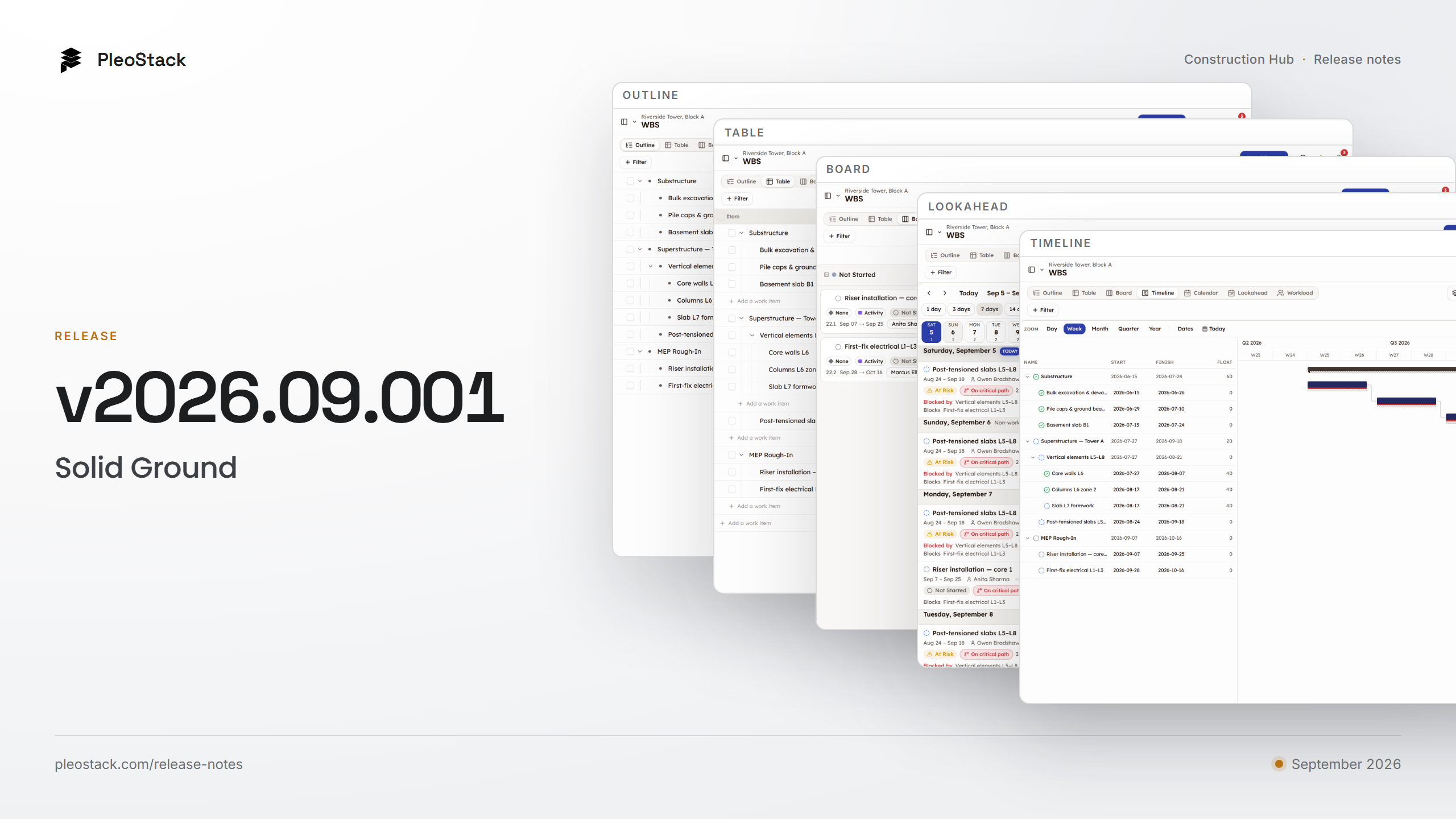
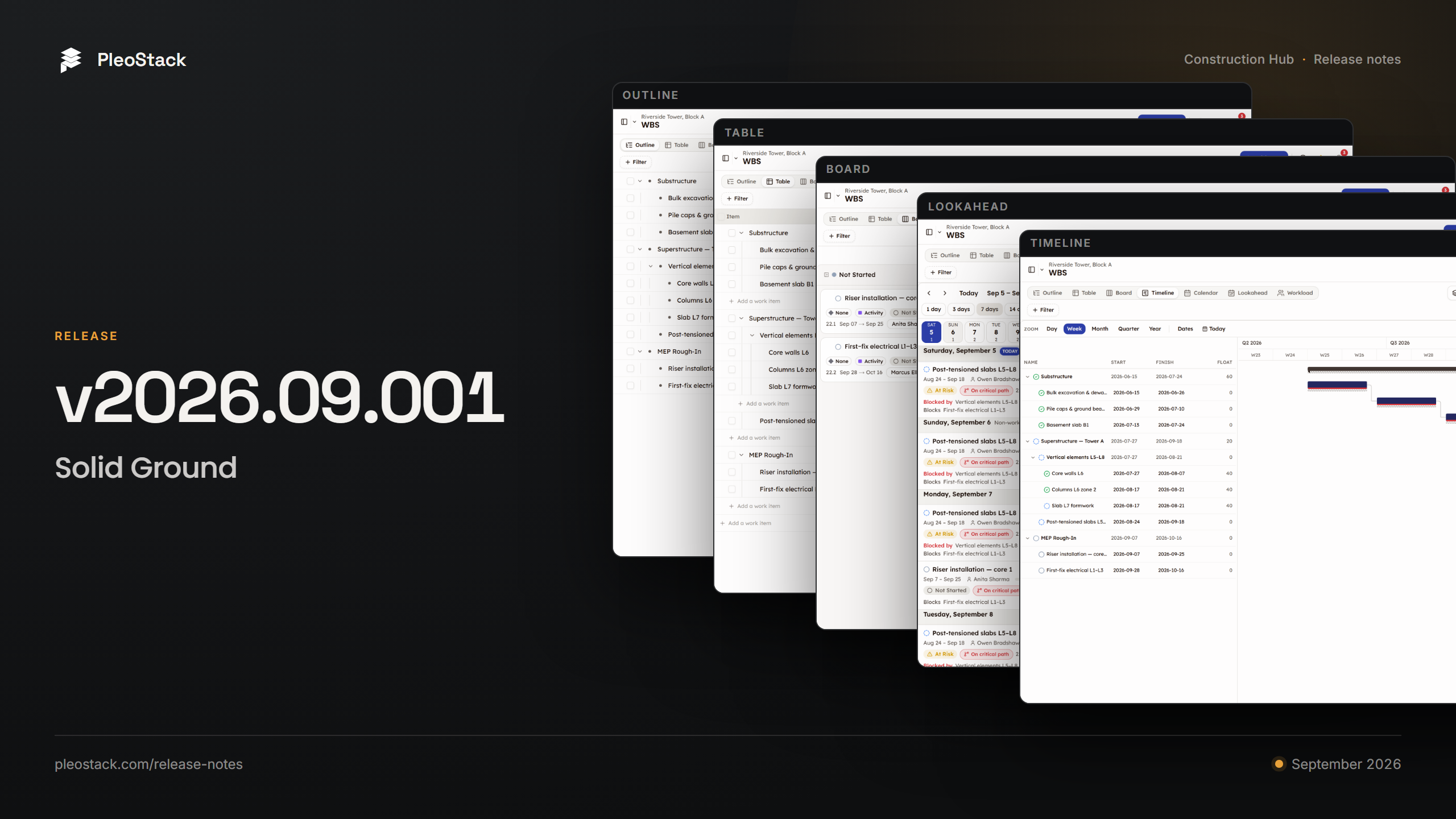
The second Construction Hub release is about making what already shipped solid. A rebuilt WBS that reads one plan through seven lenses, toolbox talk sign-off (beta) worked from the web app, company and personal dashboards, and a Sent register for client reports.

Praful Rudra · Co-Founder & CEO
6 min read
The first Construction Hub release was the Hub going live. This one, v2026.09.001, is about the ground that release stands on. We are calling it Solid Ground: a stabilisation release that makes what already shipped solid, and brings a rebuilt WBS with it.
Everything in this post is on the Construction Hub web app.
Solid Ground (v2026.09.001) is a stabilisation release for the Construction Hub web app. The WBS now reads one plan through seven lenses, with baselines drawn under the live bar and a workload view measured against each person's working day. Toolbox talks (beta) move through their ordered sign-off chain from the web app, with a written note on a return and a resubmit. Dashboards come as company and personal dashboards, and a finished client report marked as sent is kept in a Sent register.
The WBS: one plan, seven ways to read it
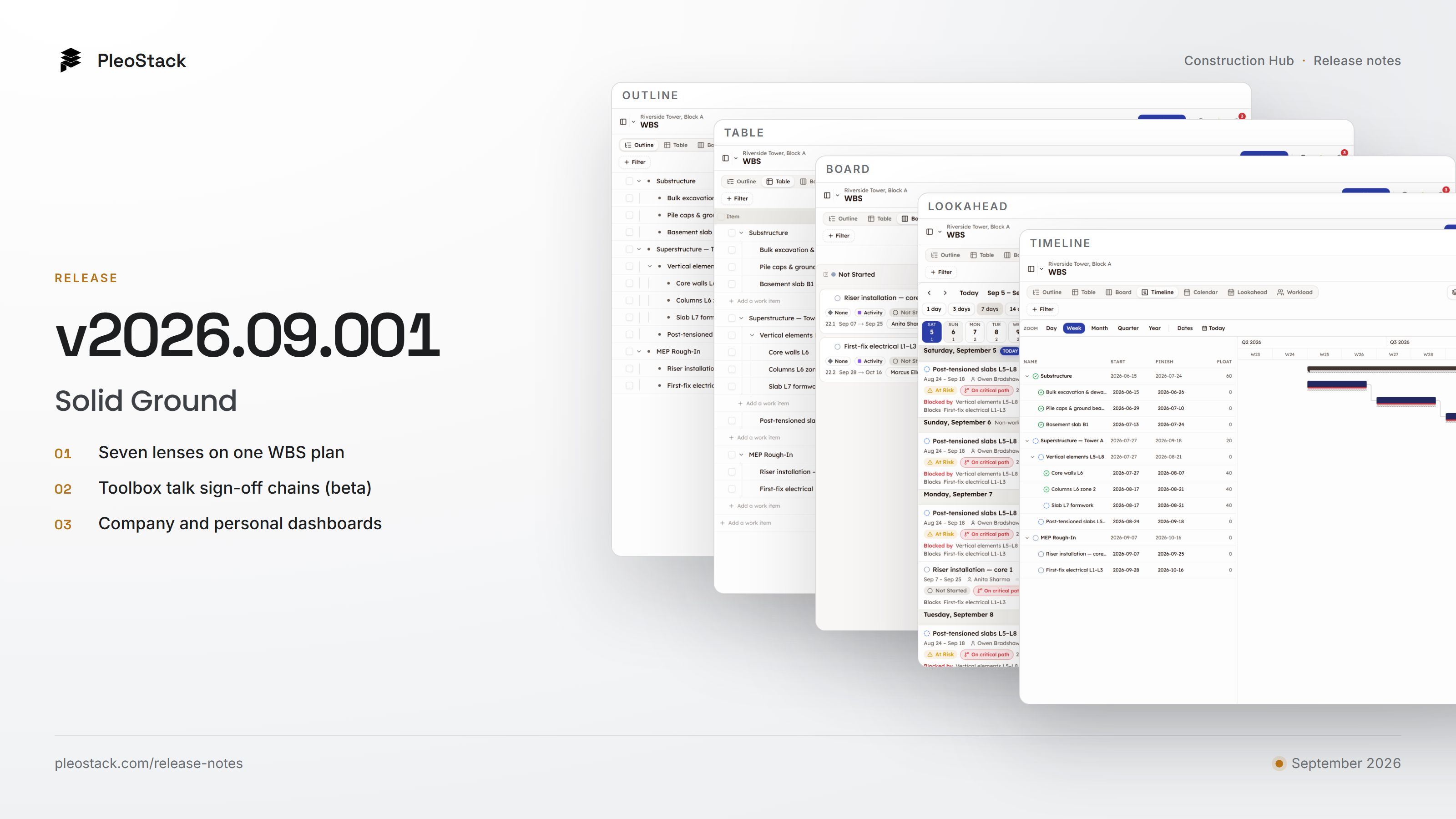
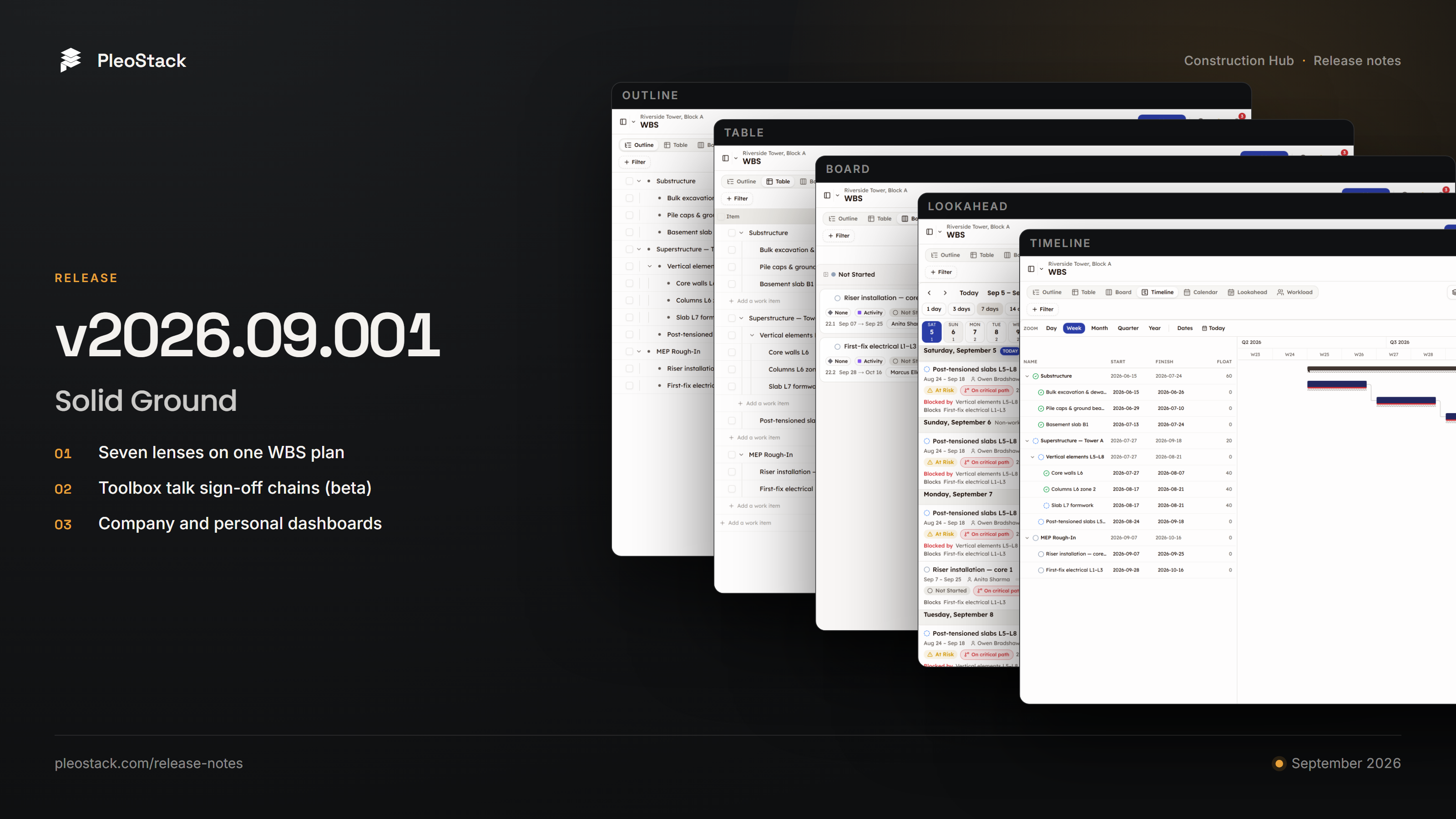
A programme is one set of work, but a planner, a site manager and a foreman each need to look at it differently. The WBS now gives them seven lenses on the same items: Outline, Table, Board, Timeline, Calendar, Lookahead and Workload. They are not seven copies of the plan. Filters, search and grouping are shared across every lens. The lens you chose is written into the link, so a colleague you send it to opens the plan on the same lens.
- Baselines. Commit the plan on one item, or on a whole phase in one action. The Timeline then draws each item's baseline under its live bar, so slippage is a visible offset rather than something to remember.
- Workload. Capacity is hours per working day, set per person on the project. The Workload lens divides each person's assigned effort by their own figure across the period in view, and calls out who is over-allocated.
- Staged reschedules. Drag a bar on the Timeline and the change lands in a review tray, to apply or discard, so a reschedule is reviewed before it becomes the plan.
- Float and the critical path. The Timeline draws dependency lines, float and the critical path. They are computed on a Monday to Friday week with no holidays, so on a six-day site read the float as optimistic.
- Codes the software owns. Every item's WBS code is generated from its position. Delete an item and its code is released, and the gap closes.
- Moves that explain themselves. When a workflow rule stops a status change, the product quotes the rule in the workflow's own words.
The seven views are documented in full.
Toolbox talks (beta): the sign-off chain, worked from the web app
Toolbox talks are part of Safety, which is still in beta. A talk captures the topic, the talking points, attendance and photos in one panel, then moves through an ordered sign-off chain, by default deliverer, then PMC, then safety head. Each step is stamped with who signed it and when.
In this release the whole chain can be worked from the web app. A reviewer who is not satisfied can return the talk to its deliverer: the return asks for a written note, the deliverer sees that note on the returned talk, and a returned talk can be resubmitted into the chain from the start.
What the site keeps is a sign-off recorded step by step, rather than a signature sheet in a site-office drawer.
Dashboards: company and personal
A dashboard is now one of two kinds. It is either the organisation's, curated by an admin, or personal, one you build for yourself. Duplicate turns any dashboard you can see into a copy you own, so nobody is stuck on a layout somebody else controls. A seeded layout can be reset to its original, never deleted.
The widgets count work by its workflow status. Completion Rate counts work items that have reached their workflow's final Complete status, and Open Issues counts issues that are not yet Closed. A task at QC Passed still has to be finalised before it counts as done.
A new organisation is seeded with a layout for each of ten project roles, from Owner and Project Manager to Foreman, QC Inspector and Safety Officer, so those roles do not have to build a dashboard before they get something from one. More on shared and personal dashboards is in the dashboard documentation.
Reports: a Sent register for client reports
When a client report is finished, Mark as Sent moves it to the Sent register, with its date range and the date it went out. From there it can be archived. Marking a report as sent is bookkeeping: you still issue the report as a link or print it. What changes is that the register now keeps the record of what went out and when.
On the Daily Log, the person who files the log cannot sign it off. The server refuses an approval by the person who submitted it, and a reviewer can instead return the log with a written note. That two-person rule is enforced on the server, not left to habit. The daily progress report is the office's view of the site day, so it is worth a second pair of eyes before it becomes the record.
Inspections: the shared link carries the finished record
A completed inspection can be shared as a read-only link that expires after 7, 14, 30 or 90 days, optionally password-protected and capped to a number of opens. The client representative opening it now sees every verdict, the photos behind each one, re-signed on every view so an old link does not show broken images, and a Location Record of where each verdict was recorded, wherever the device supplied a location. That holds for a single-party inspection too.
Across the web app
- One register layout. The product's registers share one layout: a search box, and, where a register uses them, preset views, each with a count, and Filter, Group and Sort controls. In a phone browser each row becomes a stacked card. It covers Inspections, Issues, RFIs (beta), the Safety registers (beta), Approved Materials, the Daily Log and Resources.
- Help beside the work. The in-app help panel opens on the screen you are working in, drawn from the same articles published in the documentation. It now covers the Portfolio Dashboard and project Dashboard, WBS, Documents, Materials and Reports, alongside Inspections, Issues, Resources, RFIs (beta) and Safety (beta).
- Documents. Everyone on a project sees the same folders and files, and removing a file confirms that it goes for everyone on the project and cannot be brought back.
- Materials and stock. Add Approved Material lists your organisation's material library once, and every item in it can be picked. Usage entries, stock adjustments and QC results now show who recorded them.
The full list, including the fixes, is in the Construction Hub release notes.
What stays in beta
Safety and RFI remain in beta. Both are in production and usable, and both carry the label until they have had a versioned release of their own.
If you run construction projects and want to see any of this against the way your sites work, book a demo. Tell us where your current programme, dashboards or reports break down, and we will show you the part of the Hub built for it.