Entry 010
Construction Hub: Your Process, On Record
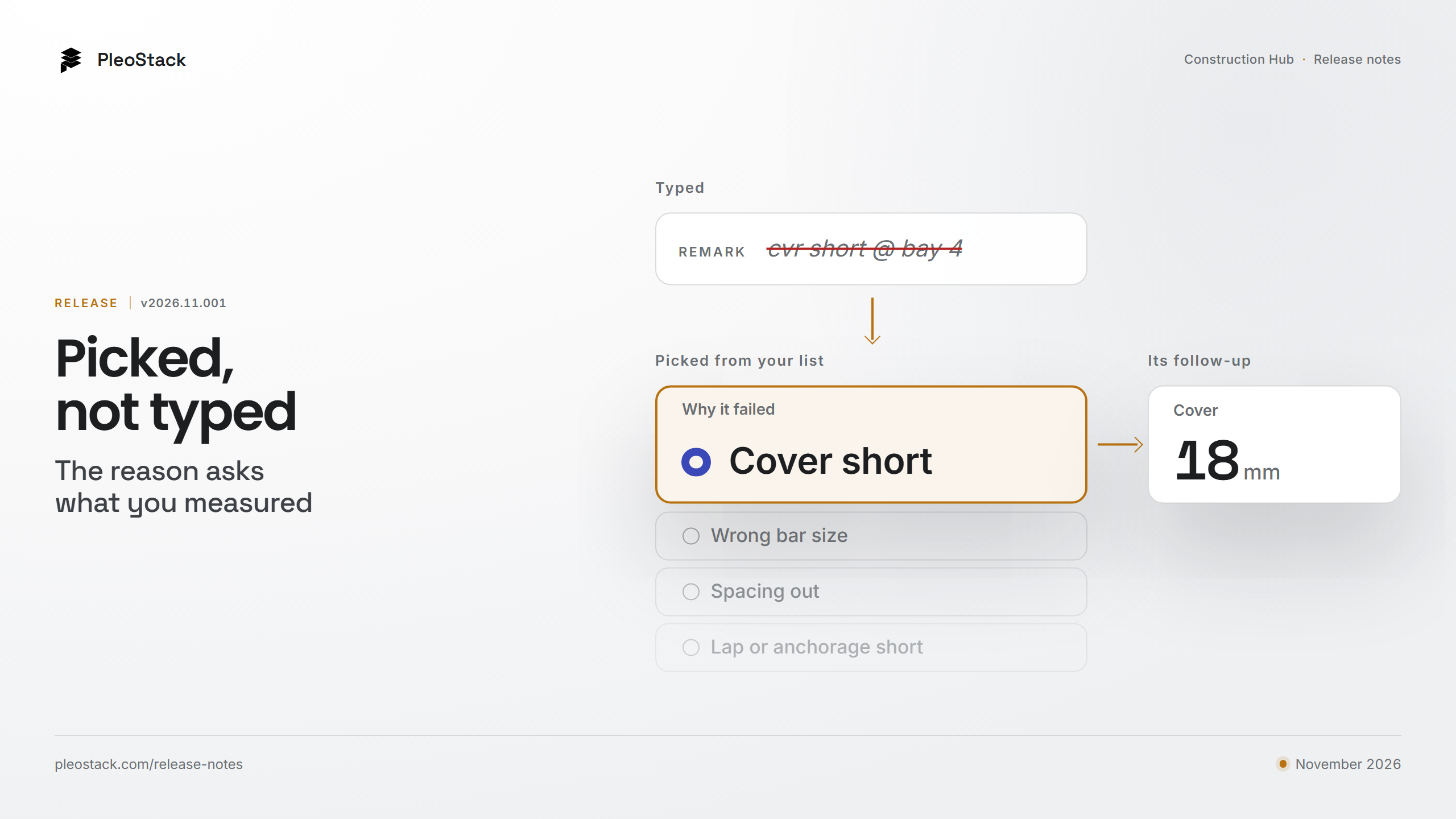
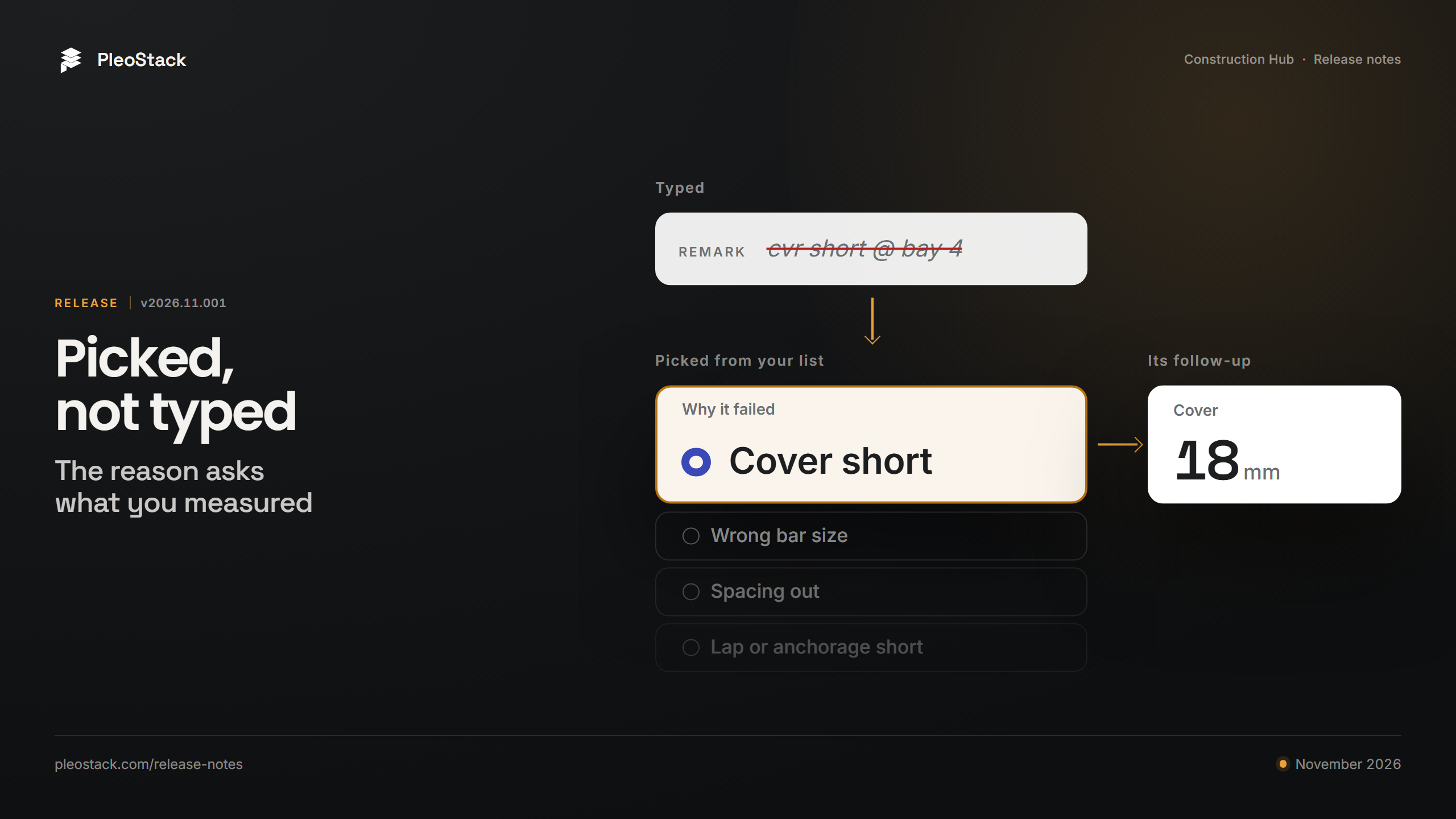
Construction Hub v2026.11.001 asks why when an inspection item fails, from the company's own list of reasons, and lets a company write its process as workflows, with every change approved before it goes live. It adds NCRs, corrective actions and quality audits, one My approvals page for the steps waiting on you, and runs issues and inspections on the same workflows. ISO 9001 ready.

Praful Rudra · Co-Founder & CEO
9 min read
Every site engineer we have talked to says the same thing, whether their inspections run on paper or already on an app. When an item fails, they have to say what was wrong, and they say it by hand: the same remark, typed or written out hundreds of times over a job, and worded a little differently by each person who writes it.
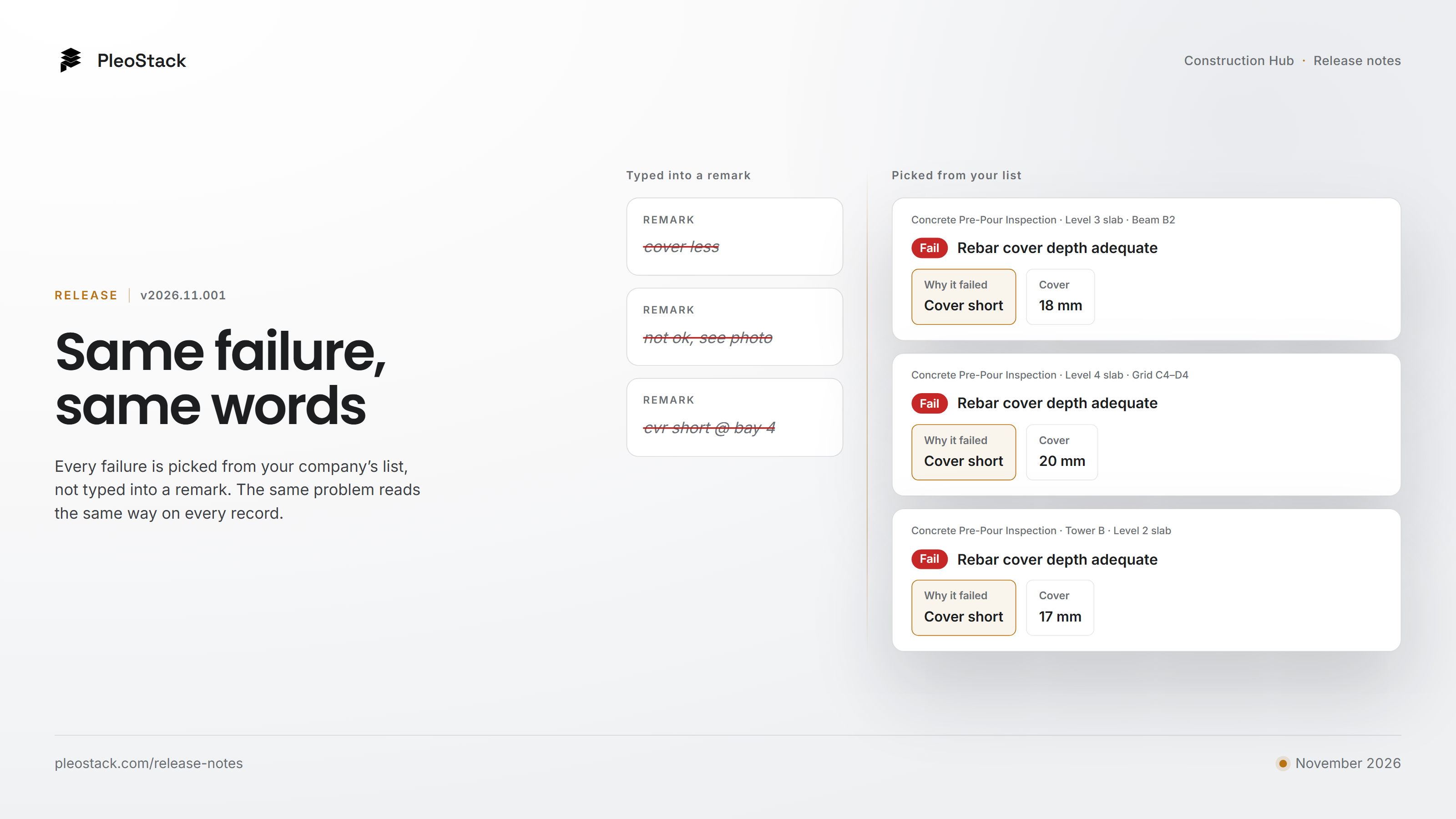
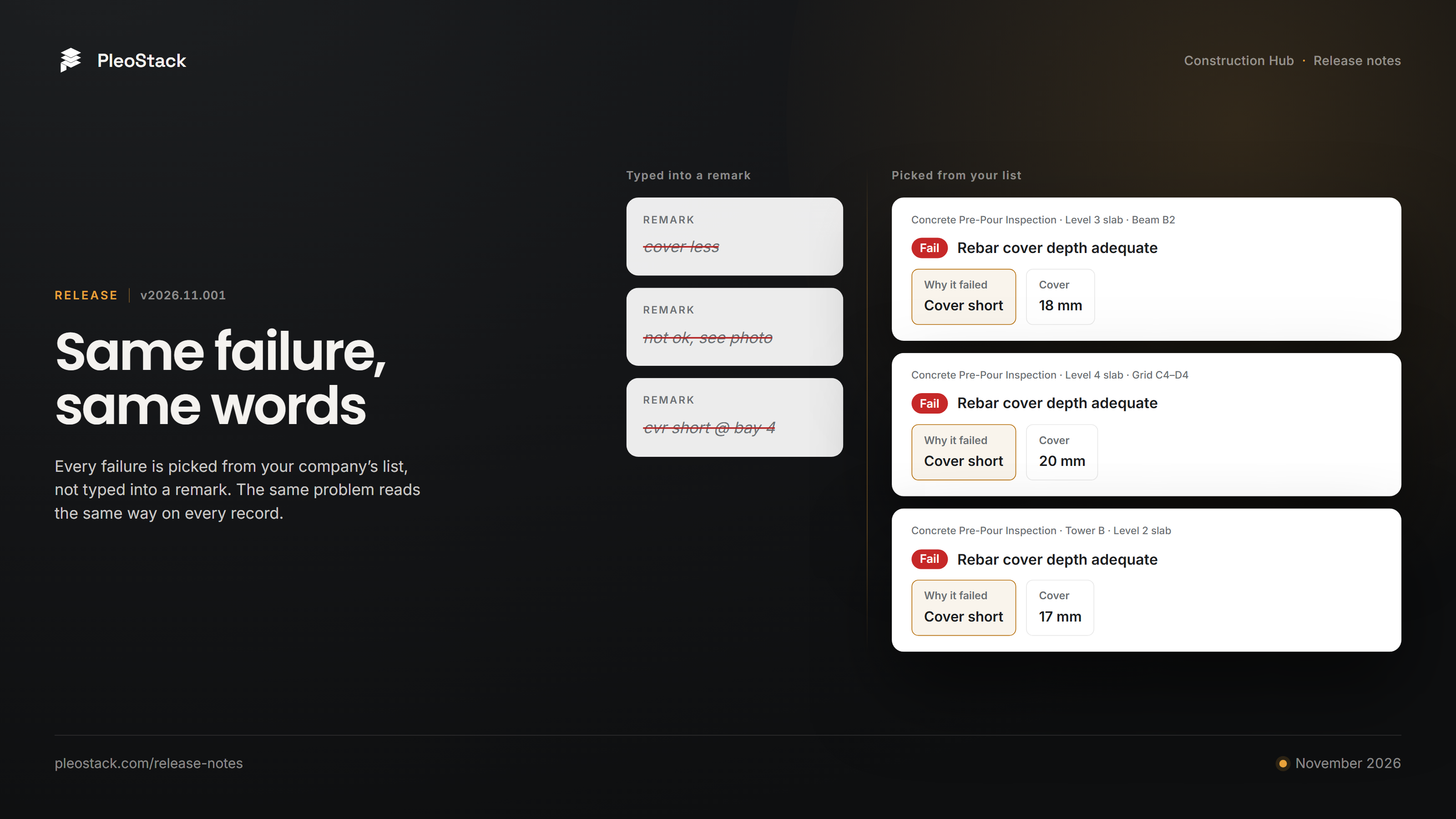
Then the remarks reach the back office, which is asked the questions that matter: which mistakes keep recurring, which delays keep coming back, where the work keeps getting stuck. The answers are in those remarks, but when every remark says it its own way, the same failure reads like a different one each time, and the pattern stays buried. It is a question for whoever kept the best notes.
This release starts at that failed item. Construction Hub asks why it failed, and the inspector picks the reason from the company's own list instead of writing it out again, then answers any follow-up that reason asks. The reason is recorded the same way, in the company's own words, on the failed item and on the issue or NCR it raises. A short cover on the fourth storey now reads exactly like a short cover on the ground floor.
When we showed it to site engineers, they loved it. The first thing they talked about was the time: no more writing out the same remark again. And because an issue raised from a failed item carries the item's name and its reason, a project manager who groups the issues by assignee can see a subcontractor whose work keeps failing the same check: the same item, again and again, under one name.
The reasons are the company's own, and so is the rest of the process. Most construction software makes you pick: a ready-made construction tool that runs its own way, or a general tool you have to build yourself. Construction Hub is built for construction and set up around the way your company already works: your checklists, the reasons a check fails, who signs off and by when.
Every contractor has a process. It lives in a quality manual, in the project manager's head and in the habits of the site team, and on a busy programme the three drift apart. This release writes it down once, as workflows, and has the Hub follow it on every record.
Everything in this post is on the Construction Hub web app.
Construction Hub v2026.11.001 asks why when an inspection item fails: a reason from the company's own list, its follow-up, a photo and a note, then record it, raise an issue or raise an NCR. It also lets a company write its process as workflows: who signs off each step, by when, and where a rejection goes, with every change approved before it goes live. A new Quality section keeps NCRs, corrective actions and quality audits, and a new My approvals page lists the steps waiting on you. Issues and inspections now run on the same workflows, and each of these records carries its run history. Construction Hub is ISO 9001 ready: it holds the records an ISO 9001 quality system needs, and certification stays with your own audit.
What happens when an item fails?
See it in a minute: A failed item asks why (video).
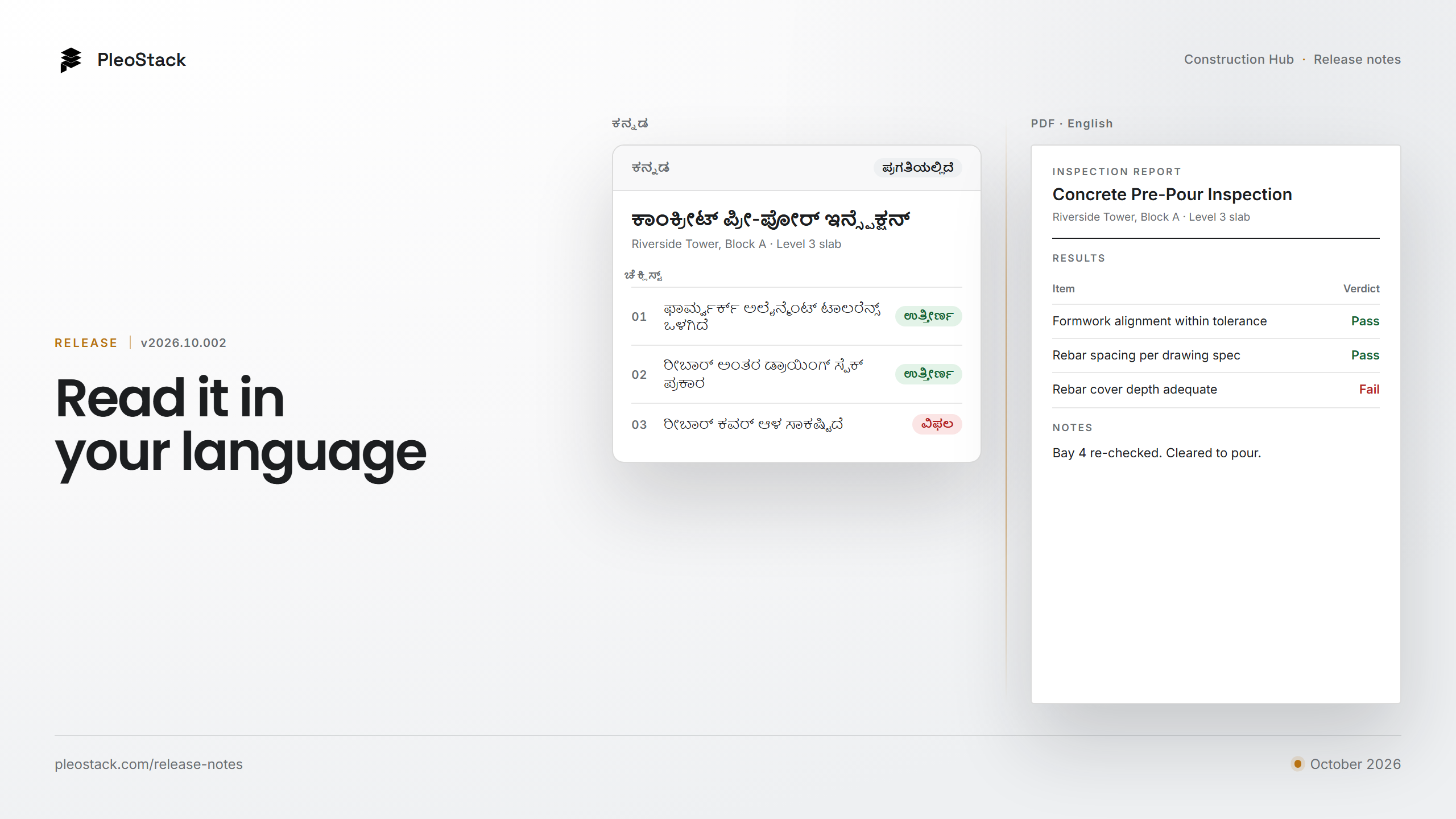
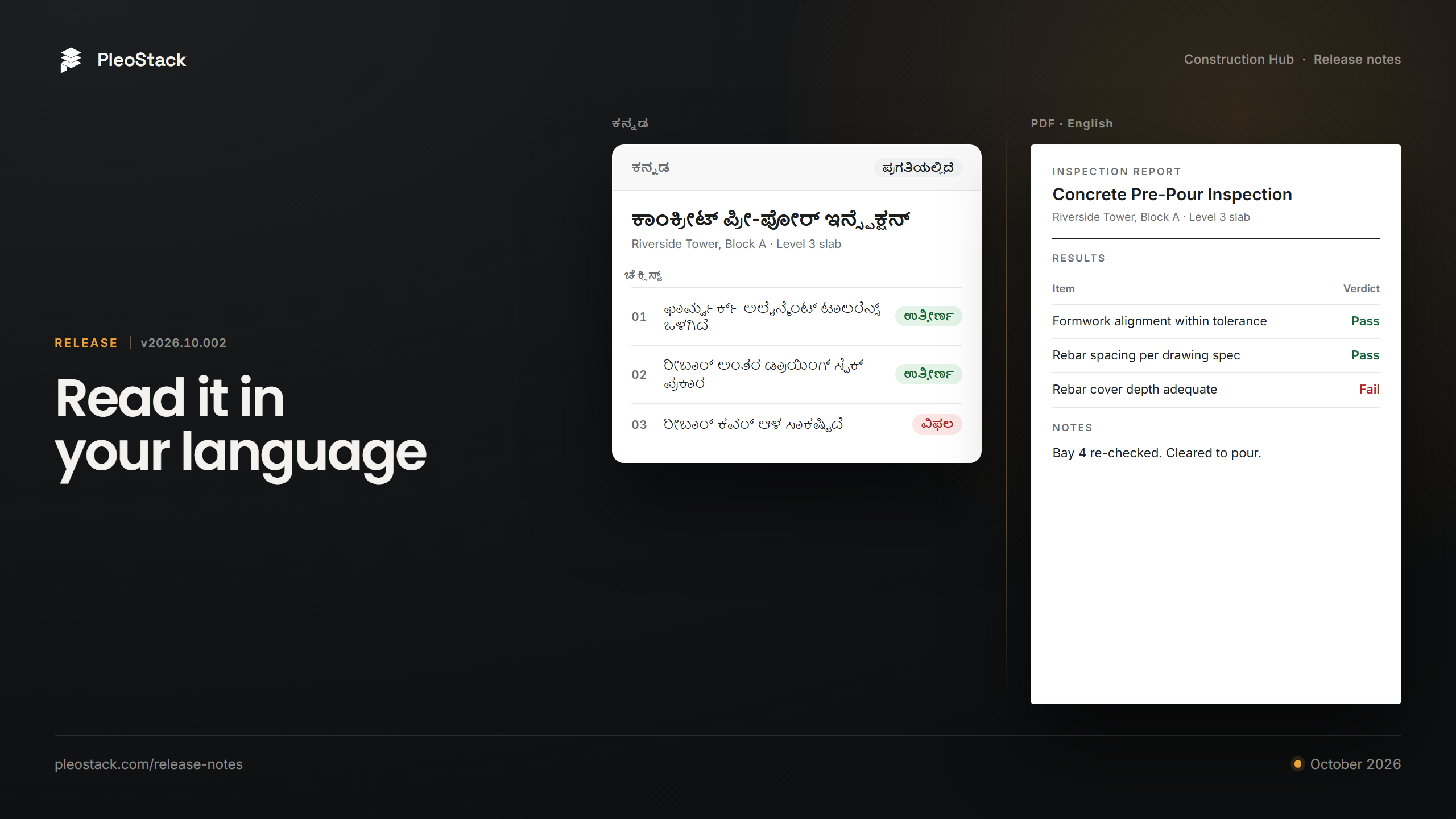
The Hub asks why, one card at a time. If the item needs a reading, that comes first. Then Why it failed: the inspector picks a reason from the company's list, and a reason can ask its own follow-up, such as the cover in mm after Cover short. Then photos, a note, and what happens next: Just record it, Raise an issue or Raise an NCR. The reason goes onto the issue or NCR it raises, and with a reason picked the note is optional.
The reason lists are the company's to change, in Admin › Library › Reason lists, and the inspection workflow says whether a failed item asks why and from which list. The step-by-step is in Failing an item.
Where do you start?
With a construction starter set. Every company gets started with ready-to-run checklists and workflows, and from this release the starter checklists ask why on a fail and take their test results as readings with units. A starter checklist you have edited is left as you made it.
If your checklists live on paper or in Excel, send them to us and we set them up as ready checklists in your account. From there you change them whenever your process changes.
How do you write your process into the Hub?
You write it as sentences. The workflow builder, in Settings → Workflows, shows each workflow as a numbered list a site engineer can read: "Any Project Manager signs off the nonconformance, then the status becomes Disposition given." Start from a template or from blank, for the whole company or for one project.
- Steps. Sign-off, fix, review, notification, condition and end. Inside a condition you can raise an issue or an NCR for each failed item, escalate, or send the record back.
- Who and by when. Each step goes to a role, a person or a company, with a deadline in working days that counts site holidays, and an escalation when it is missed.
- When someone rejects. You choose the step the record goes back to and which reason list people pick from, so a rejection always says why.
- Inspection rules. An inspection workflow carries its Reinspection and evidence rules: who re-judges after a failed check, whether it needs signing off again, whether a failed item needs a photo, how many reinspections are allowed, and whether open issues must be resolved first.
How the builder works step by step is in the workflows documentation and the builder guide.
Who approves a change to the process?
Someone who can approve workflow changes. A change is tried first in the Test run tab, where nothing is sent or saved, then sent for approval. Once accepted, it is published as the next version. Records already running stay on the version they started on, and new records start on the live one, so a change made mid-programme never rewrites what has already happened.
Every issue, inspection, NCR, corrective action, quality audit and approval request shows its run history: each move, signature, rule and deadline, who acted and when, under which permission and on which version.
Where do the steps waiting on you go?
To one page. My approvals, in the project menu, lists the steps waiting on you, such as giving a disposition, checking that a corrective action worked or approving a WBS task. Accept, or reject with a reason from your company's list or in your own words. Below them, Workflow changes lists the process changes waiting for your review or for publishing. See My approvals.
How does an NCR run from the failed check to closed?
From the record where the problem showed up. Raise NCR sits on a defect, beside a failed inspection item and on an audit nonconformity, and you can also raise one by hand. The NCR keeps its link back to where it came from, with a severity (observation, minor, major or critical), an optional reference standard and the containment taken.
A role that can approve NCRs gives the disposition: rework, repair, use as is or reject. Repair and use as is are recorded as a concession, with the client's consent if your contract needs it. The NCR then moves from Raised to Disposition given to Closed. The NCR guide walks through each stage.
Before it closes, someone decides whether it could happen again unless its cause is dealt with. If it could, they raise a corrective action: the root cause, the steps to remove it, and an effectiveness check 20 working days after the last step that asks whether the steps stopped it coming back. See corrective actions.
Quality audits are planned against a published checklist (a starter checklist is included), their findings entered and issued, and the audit closed. A nonconformity found in an audit opens a corrective action. When an auditor or a client asks for proof, a role that can approve quality audits requests an evidence pack: a sample of the project's quality records with their run histories, in one zip filed in Documents. See quality audits and the Quality overview.
What changes for issues and inspections?
Both now run on the same workflows as everything else.
- Issues. A new issue moves Open → Fixed → Closed. A snag fixed there and then can be marked Fixed on the spot with a photo (not for issues raised from an inspection). The person checking it verifies it or sends it back with a reason, and voiding an issue or marking it a duplicate needs a reason too. An issue can be assigned to a company, not only to a person.
- Inspections. A new inspection sizes its sign-off to the risk of the work. Routine work closes on the inspector's verdict. Quality-critical work, by default concrete, structural, steel, reinforcement, formwork, masonry, waterproofing, foundation and piling templates, also needs an approver. A template can be set either way. Checklist templates become versioned forms, so an inspection keeps the checklist it started on.
Issues and inspections already open finish the way they started. Only new records follow the new routes.
What does ISO 9001 ready mean here?
It means the Hub holds the records, controls and evidence an ISO 9001 quality system needs: NCRs, corrective actions with an effectiveness check, internal audits, procedures that are versioned and approved before they change, and a run history on every record that runs on a workflow. It does not mean the Hub certifies you. Certification belongs to your own audit; the Hub helps you run the system that audit looks at.
The full list, including the fixes, is in the Construction Hub release notes.
If you want to see your own process in the Hub, book a demo. Bring a checklist you use today, on paper or in Excel, or the last NCR your site raised, and we will show it to you set up as a checklist and a workflow.